
Introduction: Why Clean HTML to PDF Conversion Still Matters
Converting HTML pages into PDFs may sound simple, but anyone who has tried it knows how quickly things can go wrong. Layouts break, fonts change, images shift, and page breaks appear in all the wrong places.
Despite modern tools, HTML to PDF conversion remains a critical workflow for businesses, developers, educators, and everyday users. PDFs are still the standard format for sharing documents that must look consistent across devices and printers.
This guide explains HTML to PDF conversion best practices in a clear, practical way. Whether you’re generating invoices, reports, ebooks, or legal documents, you’ll learn how to produce clean, print-ready PDFs that look professional and reliable.
What Is HTML to PDF Conversion?
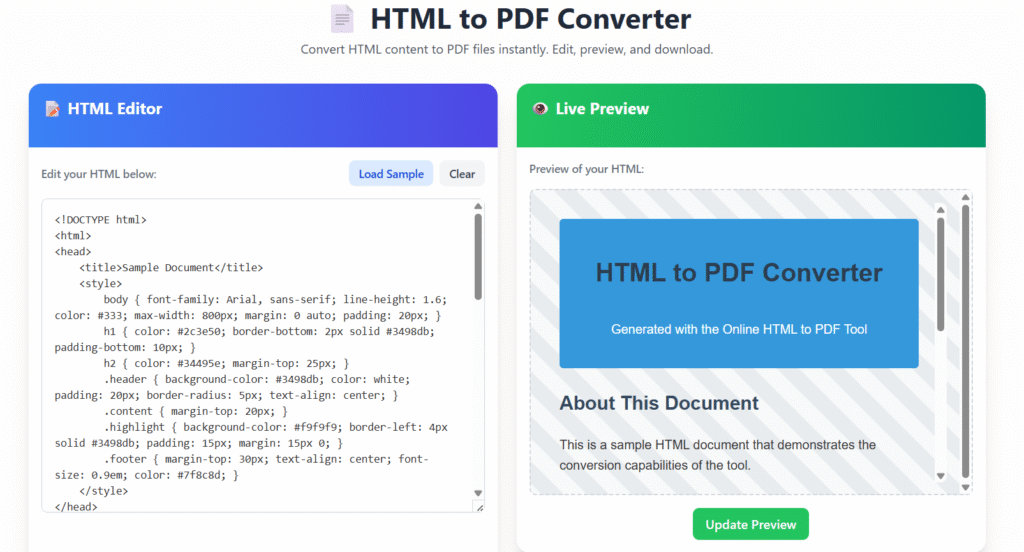
HTML to PDF conversion is the process of transforming a web page or HTML document into a PDF file while preserving layout, styling, and content structure.
HTML is designed for flexible screens, while PDFs are designed for fixed layouts. This fundamental difference is why conversion issues happen and why best practices matter.
Common ways to convert HTML to PDF include:
- Browser print engines (Print to PDF)
- Server-side rendering tools
- API-based PDF conversion services
Understanding how these methods work helps you avoid formatting problems later.
Why HTML and PDFs Behave Differently
Before applying best practices, it helps to understand why HTML doesn’t naturally convert well into PDFs.
Key differences include:
- Responsive vs fixed layout
HTML adapts to screen sizes, PDFs do not. - CSS interpretation
Some CSS rules work on screens but fail during printing. - Pagination
HTML scrolls endlessly, PDFs require defined page breaks. - Font handling
Web fonts may not embed correctly in PDFs.
Knowing these differences allows you to design HTML specifically for PDF output.
Common HTML to PDF Conversion Problems
Many users face similar issues when converting HTML to PDF. These problems usually come from skipping print-specific planning.
Frequent issues include:
- ❌ Content cut off at page edges
- ❌ Page breaks splitting headings or tables
- ❌ Fonts replaced unexpectedly
- ❌ Blurry or stretched images
- ❌ Incorrect margins for printing
- ❌ Large PDF file sizes
Each of these can be fixed by following proven conversion practices.
HTML to PDF Conversion Best Practices for Clean Output
This section covers the most important HTML to PDF conversion best practices you should follow for professional results.
1. Use Print-Specific CSS (@media print)
Screen styles and print styles should never be the same.
Always create a dedicated print stylesheet using:
@media print {
  /* Print-specific rules */
}
Benefits of print CSS:
- Controls page size and margins
- Prevents unwanted page breaks
- Removes unnecessary UI elements
- Improves print clarity
Print CSS is the foundation of reliable PDF conversion.
2. Define Page Size and Margins Explicitly
PDFs require fixed dimensions.
Always define page settings such as:
- Page size (A4, Letter, Legal)
- Margins (top, bottom, left, right)
- Orientation (portrait or landscape)
This prevents content from being clipped during printing and ensures consistency across devices.
3. Control Page Breaks Carefully
Uncontrolled page breaks can ruin a document’s readability.
Use print-friendly CSS properties such as:
page-break-beforepage-break-afterpage-break-inside
Best practices include:
- Avoid breaking headings from their content
- Keep table rows together
- Start new sections on fresh pages
This is especially important for invoices, reports, and legal documents.
4. Choose PDF-Friendly Fonts
Not all fonts work well in PDFs.
For best results:
- Use widely supported fonts (Arial, Times New Roman, Roboto)
- Avoid loading too many custom web fonts
- Ensure fonts are embedded during conversion
Font issues are one of the most common causes of unprofessional PDFs.
5. Optimize Images for Print Quality
Images that look good on screens may print poorly.
Key image tips:
- Use appropriate resolution (150–300 DPI for print)
- Avoid oversized images
- Prefer SVGs for icons and logos
- Compress images without quality loss
Optimized images improve both visual quality and file size.
6. Handle Tables and Long Content Properly
Tables often break during HTML to PDF conversion.
Best practices include:
- Prevent table rows from splitting across pages
- Repeat table headers on each page
- Avoid overly wide tables
- Use readable font sizes
This is critical for financial statements, data reports, and analytics exports.
7. Test Across Browsers and Devices
Different engines render HTML differently.
Before finalizing your PDF:
- Test in Chrome, Firefox, and Edge
- Check both screen preview and print preview
- Review output on desktop and mobile
Testing ensures consistency and prevents surprises.
Tools Used for HTML to PDF Conversion
Choosing the right tool matters as much as writing good HTML.
Browser-Based Conversion
Using “Print to PDF” in browsers is quick and free.
Pros:
- No setup required
- Good for simple documents
Cons:
- Limited control
- Inconsistent results for complex layouts
Server-Side Conversion Libraries
Popular server-side tools include:
- wkhtmltopdf
- Puppeteer
- Playwright
- WeasyPrint
These tools offer more control and automation, making them suitable for production systems.
API-Based HTML to PDF Services
API services handle rendering remotely.
Advantages include:
- Faster setup
- Scalable for large volumes
- Consistent output
They are often used in SaaS platforms and document automation workflows.
Print-Ready PDF Checklist ✅
Before sharing or printing your PDF, review this checklist:
- ✔ Print CSS applied
- ✔ Page size and margins defined
- ✔ Fonts embedded correctly
- ✔ Images optimized for print
- ✔ Page breaks tested
- ✔ Tables render correctly
- ✔ File size optimized
This checklist helps prevent costly mistakes.
Performance and File Size Optimization
Large PDFs load slowly and frustrate users.
To improve performance:
- Minimize unused CSS
- Compress images
- Avoid unnecessary fonts
- Cache generated PDFs when possible
Performance optimization improves user experience and reduces hosting costs.
Accessibility and Professional Standards
Accessible PDFs are easier to read and share.
Basic accessibility tips:
- Use semantic HTML elements
- Ensure readable contrast
- Avoid tiny font sizes
- Use clear headings and structure
Accessibility also improves long-term usability and trust.
Real-World Use Cases for HTML to PDF Conversion
HTML to PDF workflows are used across industries.
Common examples include:
- Invoices and billing documents
- Legal contracts and agreements
- Business reports and proposals
- Educational materials
- Marketing brochures
- User manuals and guides
Following HTML to PDF conversion best practices ensures these documents look professional everywhere.
Frequently Asked Questions (FAQs)
What is the best way to convert HTML to PDF?
The best method depends on complexity. Simple documents work well with browser tools, while complex layouts benefit from server-side or API-based solutions.
Why does my PDF look different from my webpage?
HTML is responsive, while PDFs use fixed layouts. Without print-specific CSS, layouts may shift during conversion.
How do I fix page breaks in HTML to PDF?
Use print CSS properties like page-break-before, page-break-after, and page-break-inside to control pagination.
Are HTML to PDF tools SEO-friendly?
PDFs can be indexed by search engines, but they should complement—not replace—HTML content for SEO purposes.
Can PDFs be optimized for printing?
Yes. Proper margins, embedded fonts, optimized images, and print CSS make PDFs fully print-ready.
Final Thoughts
Creating clean, professional PDFs from HTML doesn’t happen by accident. It requires planning, testing, and attention to detail.
By applying these HTML to PDF conversion best practices, you can avoid layout issues, improve print quality, and deliver documents that meet professional standards.
You can now apply these steps to convert your HTML documents safely and efficiently.
About the Author
This article was written by a digital content specialist with experience in image optimization, file formats, and document workflows. The goal is to provide practical, accurate guidance for everyday users.
Disclaimer
This guide is for educational purposes only. Tool availability and features may change over time.