
Spreadsheets are powerful, but sharing them isn’t always easy.
In 2026, professionals across finance, education, business, and remote teams still rely heavily on Excel. However, sending raw spreadsheet files can lead to formatting issues, accidental edits, or data exposure.
That’s why Excel to PDF Online conversion has become an essential workflow. A properly converted PDF preserves layout, protects formulas, and ensures your document looks the same on every device.
This guide explains how to convert Excel spreadsheets securely without losing formatting, what to watch out for, and how to choose the right approach—without hype or sales pressure.
Why Excel to PDF Conversion Still Matters in 2026 📊
Despite new collaboration tools, Excel remains the backbone of structured data.
However, Excel files:
- Can break formatting across devices
- Allow unintended editing
- May expose formulas or hidden sheets
- Depend on software compatibility
PDF files, on the other hand:
- Look identical everywhere
- Are harder to modify accidentally
- Are widely accepted for official use
- Work seamlessly across devices
Using Excel to PDF Online tools bridges this gap efficiently when done correctly.
When Should You Convert Excel Files to PDF?
Not every spreadsheet needs conversion, but many situations demand it.
Common Scenarios
- 📑 Sharing financial or performance reports
- 🧾 Sending invoices or quotations
- 🎓 Submitting academic or research data
- 🏢 Uploading documents to portals or government systems
- 📱 Viewing spreadsheets on mobile devices
PDFs ensure your data is read-only, stable, and presentation-ready.
Common Problems When Converting Excel to PDF (And How to Avoid Them)
Many users experience issues because they rush the process or use unreliable tools.
1. Formatting Loss
Typical problems include:
- Cut-off columns
- Misaligned tables
- Page breaks in the wrong place
- Font substitution
How to avoid it:
- Set print areas before converting
- Adjust scaling to “Fit to Page”
- Use standard fonts when possible
2. Data Security Risks 🔐
Uploading spreadsheets online can feel risky, especially when they contain:
- Financial data
- Employee information
- Client records
Best practices:
- Use HTTPS-secured tools
- Avoid converters that require sign-ups
- Check auto-deletion policies
- Don’t upload files on public Wi-Fi
3. Issues With Large or Complex Files
Complex Excel files may include:
- Multiple sheets
- Charts and pivot tables
- Conditional formatting
Not all converters handle these well.
Look for tools that explicitly support Excel to PDF with charts and tables and large file sizes.
How to Convert Excel to PDF Without Losing Formatting (Step-by-Step)
Follow these steps to reduce errors and preserve layout.
Step 1: Prepare Your Excel File Properly
Before uploading:
- Set the Print Area
- Choose correct page size (A4 or Letter)
- Adjust margins
- Freeze headers if needed
- Check page breaks
Small adjustments here make a big difference later.
Step 2: Choose a Secure Online Converter
A reliable online spreadsheet to PDF converter should offer:
- HTTPS encryption
- No account requirement
- Automatic file deletion
- Support for XLS and XLSX
Avoid tools that store files indefinitely or request unnecessary permissions.
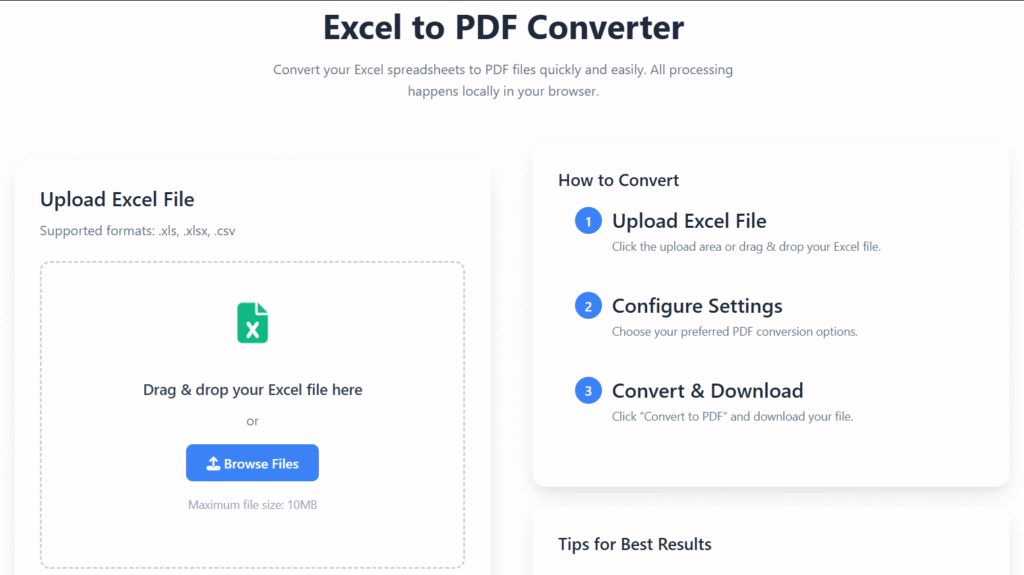
Step 3: Upload, Convert, and Review
After conversion:
- Preview the PDF
- Check column alignment
- Verify charts and totals
- Confirm page order for multi-sheet files
Only download once you’re satisfied.
Key Features to Look for in Excel to PDF Tools (2026)
Not all tools are equal. Focus on usability and transparency.
Essential Features
- ✅ Accurate layout retention
- ✅ Multi-sheet support
- ✅ Fast processing speed
- ✅ Mobile and desktop compatibility
- ✅ No watermarking
Nice-to-Have Features
- Batch conversion
- Page orientation control
- Separate PDF per sheet
- Dark-mode friendly UI
Excel to PDF vs Offline Conversion
Both approaches work, depending on your needs.
| Feature | Online Conversion | Offline (Excel Export) |
|---|---|---|
| Software required | No | Yes |
| Formatting accuracy | High (modern tools) | Medium |
| Accessibility | Any device | Desktop only |
| Speed | Fast | Moderate |
| File size handling | Varies | Depends on system |
For quick sharing, secure Excel to PDF conversion online is often more convenient.
Is It Safe to Convert Excel to PDF ?
Safety depends on the tool and how you use it.
What Makes a Tool Safer?
- Encrypted file transfer
- Temporary storage only
- Clear privacy policy
- No forced user accounts
Extra Tips for Sensitive Data
- Remove unnecessary sheets
- Avoid converters with ads disguised as buttons
- Prefer tools that mention GDPR or compliance standards
Security is about awareness, not fear.
this tool Conversion Use Cases by Industry
Finance & Accounting
- Reports
- Budget summaries
- Audit documents
Education
- Grade sheets
- Research tables
- Course materials
Human Resources
- Payroll summaries
- Policy documents
Small Businesses
- Invoices
- Inventory sheets
- Tax documents
Each use case benefits from consistent formatting and controlled access.
Best Practices for High-Quality PDF Output 📄
To get professional-looking results:
- Use consistent column widths
- Avoid excessive merged cells
- Keep charts within page margins
- Use page breaks intentionally
- Review before sharing
These habits reduce errors regardless of the tool used.
FAQs: Excel to PDF Online Conversion
Can I convert Excel to PDF online for free?
Yes. Many tools offer free conversion with basic features. However, file size limits or daily usage caps may apply. Always review terms before uploading sensitive data.
Will formulas remain visible in the PDF?
No. PDFs display values, not formulas. This protects calculations from being edited while preserving results and layout.
Can I convert Excel to PDF without losing formatting?
Yes, if you prepare the file properly and use a converter that supports page scaling, charts, and multi-sheet layouts.
Does Excel to PDF conversion work on mobile devices?
Most modern online converters work on smartphones and tablets, though large files are easier to manage on desktop browsers.
Is my data stored after conversion?
Reputable tools delete files automatically after processing. Always check the privacy policy to confirm retention practices.
Final Thoughts
Converting spreadsheets doesn’t need to be complicated or risky.
When done correctly, Excel to PDF Online conversion helps you:
- Share data confidently
- Preserve formatting
- Reduce compatibility issues
- Protect sensitive information
You can now apply these steps to convert your spreadsheets safely and efficiently, regardless of your device or technical background.
About the Author
This article was written by a digital content specialist with experience in image optimization, file formats, and document workflows. The goal is to provide practical, accurate guidance for everyday users.
Disclaimer
This guide is for educational purposes only. Tool availability and features may change over time.