
Introduction: Why Image Quality Matters More Than You Think
Converting images into PDFs is something most people do regularly—students, designers, office workers, and content creators alike. However, many face the same frustrating issue: the image looks sharp before conversion but blurry or compressed afterward.
This guide will show you how to convert PNG to PDF without losing quality, even if you’re not tech-savvy.
You’ll learn:
- Why quality loss happens
- Which formats preserve clarity best
- The safest tools and settings
- How to avoid common mistakes
Everything is explained in a simple, practical way—no technical overwhelm.
Understanding Image Formats Before Conversion
Before converting anything, it’s important to understand what you’re working with.
PNG (Portable Network Graphics)
- Lossless image format
- Maintains original quality
- Supports transparency
- Ideal for screenshots, text, and graphics
WEBP
- Modern format developed by Google
- Smaller file size with high quality
- Can be lossy or lossless
- Not supported by all tools
JPG/JPEG
- Lossy compression
- Smaller file size
- Quality degrades after repeated saves
💡 Tip: PNG is usually the best choice when quality matters.
How PDFs Handle Images
PDFs don’t store images the same way image files do. During conversion:
- Images may be resized
- DPI (dots per inch) can be reduced
- Compression may be applied automatically
This is why many people struggle when trying to convert PNG to PDF without losing quality.
Best Ways to Convert Images to PDF Without Quality Loss
1. Use High-Quality Online Converters (Easiest Method)
Modern online tools can preserve resolution when configured correctly.
What to Look For:
- “No compression” or “High quality” option
- Manual DPI control
- No forced resizing
Examples:
- PDF24
- Smallpdf
- iLovePDF
✅ Best for casual users
⚠️ Avoid uploading sensitive documents
2. Convert Using Desktop Software
Desktop tools offer the most precision.
Windows Users:
- Right-click → Print → Microsoft Print to PDF
- Set quality to “High”
- Disable scaling
3. Command Line (Advanced Users Only)
Using ImageMagick allows full control:
convert input.png -density 300 output.pdf
Best for batch processing and print-quality output.
Best Settings to Preserve Image Quality
Use these universal settings regardless of tool:
- DPI: 300 for print, 144 for digital
- Compression: None or Lossless
- Color Mode: RGB (digital), CMYK (print)
- Scaling: Disabled
✅ These settings help you convert PNG to PDF without losing quality every time.
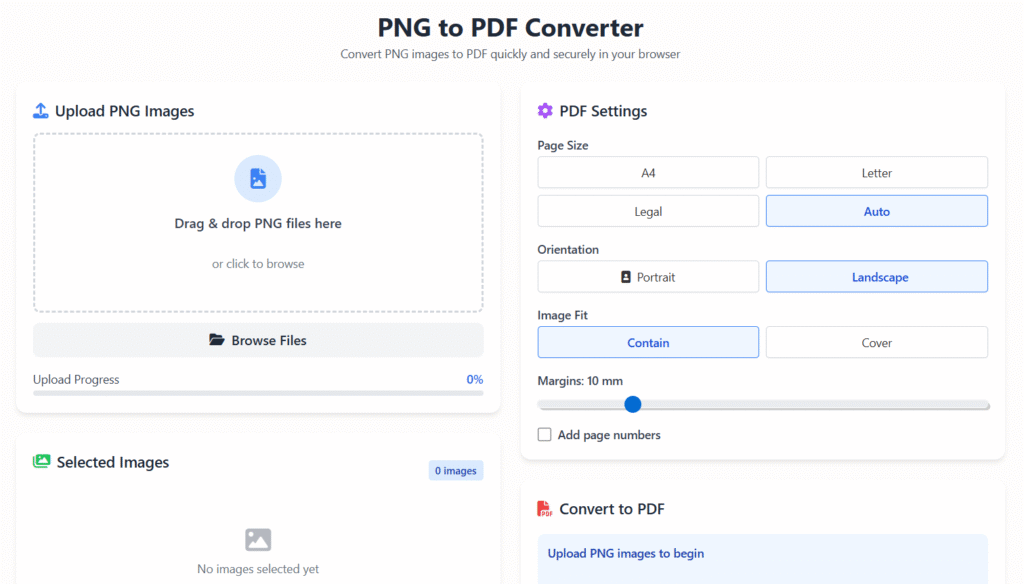
Step-by-Step: Convert PNG or WEBP to PDF Online
- Upload your image
- Choose “High Quality” or “No Compression”
- Match page size to image dimensions
- Export as PDF
- Zoom in to verify clarity
📌 Tip: Avoid tools that auto-resize to A4 unless needed.
Common Mistakes That Reduce Image Quality
Avoid these common issues:
- ❌ Using low-quality converters
- ❌ Converting the same file multiple times
- ❌ Allowing auto compression
- ❌ Ignoring DPI settings
- ❌ Uploading screenshots instead of originals
Even one mistake can reduce sharpness significantly.
Best Free & Paid Tools (Quick Comparison)
Free Tools
- PDF24 – No watermark, good quality
- iLovePDF – Fast and easy
- Smallpdf – Clean interface
Paid Tools
- Adobe Acrobat Pro
- Nitro PDF
- PDFelement
💡 Paid tools offer better consistency and batch processing.
Mobile Users: Convert Without Losing Quality
Android Apps
- Adobe Scan
- PDF Converter by Cometdocs
iOS Apps
- Apple Files App
- PDF Expert
Always check export settings before saving.
FAQs (SEO-Optimized & Short)
Can I convert PNG to PDF without losing quality?
Yes. Use lossless settings, correct DPI, and avoid compression during export.
What DPI is best for PDF images?
300 DPI is ideal for print. 144 DPI works well for screens.
Why does my PDF look blurry?
Usually due to compression or auto-resizing during conversion.
Is PNG better than JPG for PDFs?
Yes. PNG preserves more detail and avoids compression artifacts.
Are online converters safe?
Most are safe for non-sensitive files, but avoid uploading private documents.
Best Practices Summary
✔ Use original image files
✔ Choose lossless settings
✔ Avoid repeated conversions
✔ Match PDF size to image
✔ Always preview before sharing
By following these steps, you can consistently convert PNG to PDF without losing quality while maintaining professional results.
Call to Action
You can now apply these steps to convert your images safely and efficiently using the method that fits your workflow best.
About the Author
This article was written by a digital content specialist with experience in image optimization, file formats, and document workflows. The goal is to provide practical, accurate guidance for everyday users.
Disclaimer
This guide is for educational purposes only. Tool availability and features may change over time.