
Converting JPG images into a PDF file is one of the most common digital tasks today. From students submitting assignments to professionals sharing documents, JPG to PDF conversion helps organize information in a clean, structured, and professional format.
This guide explains what JPG to PDF conversion is, why it matters, how to do it on different devices, and how to get the best results without compromising quality or security.
What Is JPG to PDF Conversion?
JPG to PDF conversion is the process of turning one or multiple image files (JPG or JPEG format) into a single PDF document. JPG images are best suited for photos, while PDFs are ideal for documents that need consistent formatting and universal compatibility.
PDF files maintain layout, orientation, and clarity across all devices, making them more suitable for professional and official use.
Why Convert JPG Images Into a PDF?
There are several practical reasons why people prefer PDFs over image files.
1. Better Organization
A single PDF is easier to manage than multiple image files, especially when dealing with documents containing many pages.
2. Professional Appearance
PDFs are widely accepted for resumes, reports, invoices, and applications because they look clean and structured.
3. Universal Compatibility
PDFs open correctly on all operating systems and devices without altering the layout.
4. Easier Sharing
Sending one PDF is more convenient than sharing several image files individually.
5. Improved Security
PDFs can be password-protected and restricted from editing, which is useful for sensitive documents.
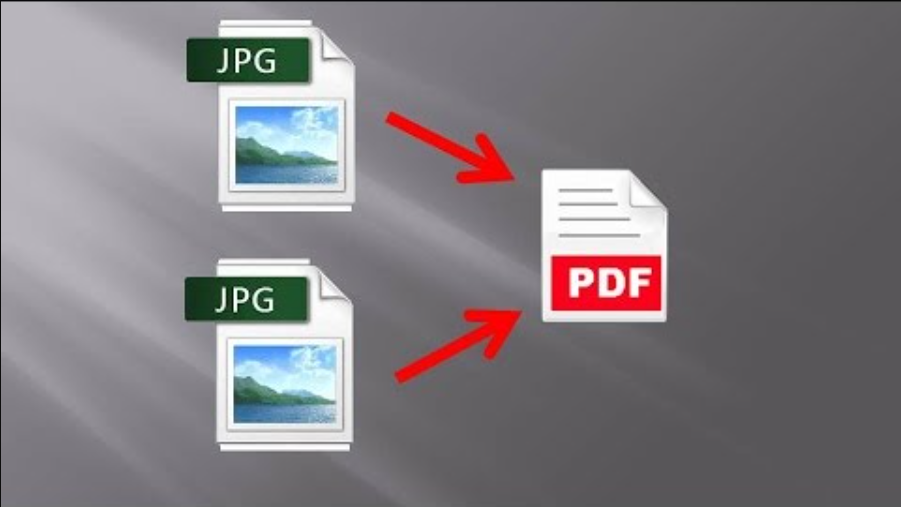
How JPG to PDF Conversion Works
The conversion process is simple and usually follows these steps:
- Select one or more JPG images
- Arrange them in the correct order
- Convert them into a PDF
- Download and save the final file
Most tools automatically adjust alignment and preserve image quality during conversion.
Methods to Convert JPG to PDF
Method 1: Online JPG to PDF Converters
Online tools are the easiest option and work on all devices with a browser.
Steps:
- Open a reliable JPG to PDF converter
- Upload your images
- Arrange them if necessary
- Convert and download the PDF
Advantages:
- No software installation required
- Works on desktop and mobile
- Quick and user-friendly
Tip: Always use trusted platforms that use secure connections and delete uploaded files automatically.
Method 2: Convert JPG to PDF on Windows
Windows includes a built-in feature for PDF creation.
Steps:
- Select your JPG images
- Right-click and choose Print
- Select Microsoft Print to PDF
- Save the file
This method works offline and is ideal for basic conversions.
Method 3: Convert JPG to PDF on macOS
Mac users can use the Preview application.
Steps:
- Open images in Preview
- Arrange them in the sidebar
- Click File → Export as PDF
- Save the document
This method maintains high image quality.
Method 4: Convert JPG to PDF on Mobile Devices
Android:
- Use Google Photos or Files by Google
- Select images → Print → Save as PDF
iPhone / iPad:
- Open Photos
- Select images
- Tap Share → Print
- Use pinch-out gesture → Save as PDF
Mobile conversion is useful for scanning documents on the go.
Recommended Free JPG to PDF Tools
Trusted tools commonly used include:
- SmallPDF
- iLovePDF
- Adobe Online Converter
- PDF24
- PDFCandy
When choosing a tool, look for:
- No watermark
- No forced account creation
- Automatic file deletion
- Secure HTTPS encryption
Tips for High-Quality PDF Results
To ensure the best output:
- Use clear, high-resolution images
- Avoid excessive compression
- Arrange images before converting
- Rename files numerically for proper order
- Use grayscale for text-heavy documents
These steps help maintain clarity and readability.
Common Problems and How to Fix Them
PDF looks blurry
→ Use higher-quality images and avoid resizing during conversion.
File size is too large
→ Compress images before converting or use a PDF compressor.
Pages appear in the wrong order
→ Rename images numerically or reorder them manually.
PDF does not open properly
→ Try converting again using a trusted tool.
JPG vs PDF: Which Is Better?
| Feature | JPG | |
|---|---|---|
| Best for photos | Yes | No |
| Multi-page support | No | Yes |
| Printing | Limited | Excellent |
| Professional use | Limited | Ideal |
| File organization | Poor | Excellent |
PDF is clearly better for documents and long-term storage.
Is JPG to PDF Conversion Safe?
Yes, when done using reliable tools.
Safety tips:
- Use secure (HTTPS) websites
- Avoid uploading sensitive documents to unknown platforms
- Prefer tools that auto-delete files
- Use offline methods for confidential documents
Why JPG to PDF Conversion Is So Popular
People use JPG to PDF conversion for:
- School and college assignments
- Office documents and reports
- Legal paperwork
- Receipts and invoices
- Identity verification
It saves time, improves presentation, and keeps files organized.
Final Thoughts
this tool is a simple yet powerful way to manage digital documents efficiently. Whether you’re working professionally or handling personal files, converting images into PDFs helps maintain clarity, structure, and reliability.
With the right tools and a few best practices, you can create high-quality PDFs in seconds—without technical expertise.