
In today’s data-driven world, sharing and presenting information in a professional format is crucial. While CSV (Comma-Separated Values) files are excellent for storing structured data, they aren’t always the easiest format to read or share. This is where converting CSV to PDF becomes important. PDFs are device-independent, preserve formatting, and are ideal for reporting, presentations, and official documentation.
In this guide, we’ll cover everything you need to know about converting CSV files to PDF online, including best practices, common pitfalls, recommended tools, and tips to ensure your PDFs are clean, readable, and professional.
What Is a CSV File?
A CSV file is a plain text file that stores tabular data. Each row represents a record, and each column is separated by a comma (or sometimes a semicolon). This simple structure makes CSV files lightweight, flexible, and compatible with almost any spreadsheet or database software.
Common uses of CSV files include:
- Exporting data from databases
- Backing up spreadsheets
- Generating reports from CRM or analytics tools
- Tracking financial transactions
While CSV files are excellent for data processing, they are not designed for presentation. Without proper formatting, large CSV files can be hard to read, especially when shared with clients or stakeholders.
Why Convert CSV to PDF Online?
Converting CSV files to PDF offers several advantages:
✅ Preserves formatting across devices – PDFs look the same on desktops, tablets, and mobile devices.
✅ Prevents accidental edits – Unlike CSVs or Excel files, PDFs are not easily modified.
✅ Professional presentation – Ideal for business reports, invoices, and summaries.
✅ Easy sharing and printing – PDFs are universally compatible and ready for archiving.
In short, PDF conversion ensures your data is not only readable but also credible and presentation-ready.
Common Challenges When Converting CSV to PDF
Before converting your CSV file, it’s important to understand some common pitfalls:
- Misaligned columns – Wide tables may not fit on a page, causing overlapping or cut-off data.
- Poor readability on small screens – Without careful layout, PDFs can be difficult to read on mobile devices.
- Missing headers or page breaks – Large tables may lose column headers or break awkwardly across pages.
- Encoding issues – Special characters may not display correctly if encoding isn’t handled.
- Overcrowded tables – Too much data on one page reduce clarity.
By addressing these issues, you can ensure your final PDF is clean, readable, and professional.
Best Practices for Converting CSV to PDF Online
Here are practical steps to ensure your CSV-to-PDF conversion produces high-quality, professional reports:
1. Clean and Prepare Your CSV File
Before conversion, organize your data to ensure clarity:
- Remove empty rows and unused columns
- Standardize date formats and numerical values
- Correct spelling errors and inconsistencies
- Ensure headers are clear, descriptive, and properly labeled
A clean CSV results in a much more readable PDF.
2. Choose the Right Page Layout
Layout decisions directly affect readability:
- Use landscape mode for wide tables
- Use portrait mode for short, simple reports
- Adjust margins to prevent text clipping
- Avoid cramming too much data on a single page
Proper spacing and layout improve user experience and make the report easier to read.
3. Add Clear Titles and Headers
A professional PDF feels like a report, not just raw data. Include:
- A clear report title on the first page
- Column headers repeated on every page for multi-page tables
- Optional metadata like author, date, or version
This ensures readers understand the context immediately.
4. Improve Readability with Styling
Good formatting enhances readability without overcomplicating the report. Consider:
- Using consistent fonts such as Arial, Helvetica, or Roboto
- Bold headers for emphasis
- Light row shading for large tables
- Right-aligning numbers and left-aligning text
Subtle styling makes your data easier to scan and interpret.
5. Handle Large Datasets Smartly
Large CSV files can overwhelm readers if not managed properly. Best practices include:
- Splitting data into sections or multiple pages
- Summarizing key insights before the detailed table
- Filtering unnecessary rows or columns
- Highlighting critical figures for quick scanning
A well-organized PDF is informative without being overwhelming.
Best Tools to Convert CSV to PDF Online
Depending on your needs, different tools offer different advantages:
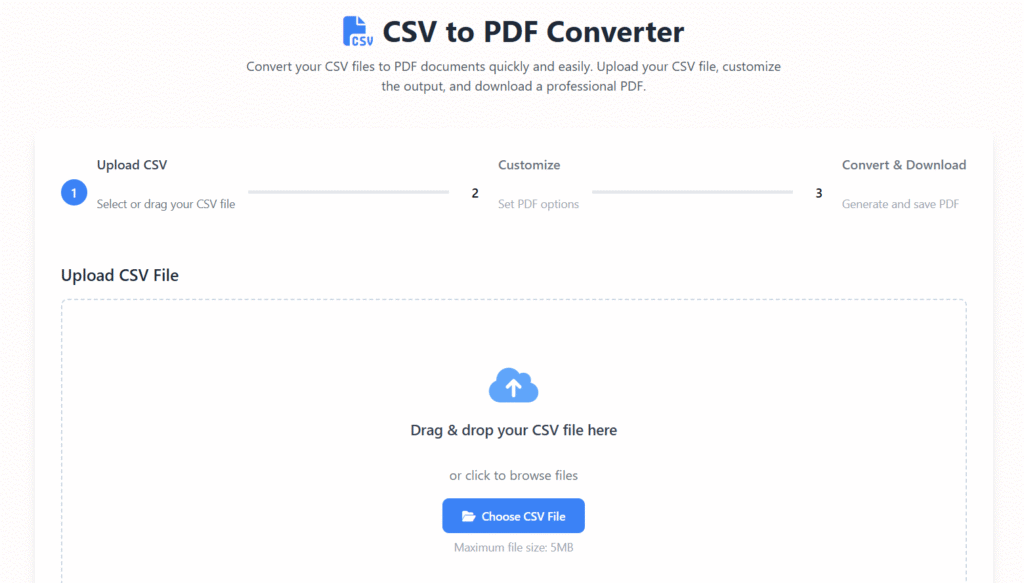
1. Online CSV to PDF Converters
Pros:
- Quick and easy
- No installation required
- Drag-and-drop interface
Cons:
- Often limited to smaller files
- Avoid uploading sensitive data to unknown websites
2. Spreadsheet Software (Excel or Google Sheets)
Pros:
- Greater control over formatting and layout
- Can export professional-looking PDFs
- Useful for recurring reports
Steps:
- Import your CSV into Excel or Google Sheets
- Format the table, adjust column widths, and add headers
- Export or download as PDF
3. Automated Scripts (Python)
Pros:
- Ideal for bulk processing or automation
- Highly customizable formatting
- Scalable for teams
Tools: Pandas, ReportLab, or FPDF
Steps:
- Load the CSV using Pandas
- Clean and format the data
- Export as PDF using a PDF library
Step-by-Step Guide: Converting CSV to PDF
Option 1: Using Excel or Google Sheets
- Open your CSV file
- Adjust column widths and layout
- Apply headers and formatting
- Export or save as PDF
Option 2: Using an Online Converter
- Upload your CSV file to a trusted tool
- Choose layout options (landscape/portrait, margins)
- Preview the result
- Download the PDF
Option 3: Using Python (Advanced)
- Import CSV using Pandas
- Clean and format your data
- Export to PDF using a library like ReportLab
- Automate for recurring tasks or large datasets
SEO Tips for PDFs
Optimizing PDFs for search engines increases visibility:
- Use descriptive file names (e.g.,
sales-report-2025.pdf) - Add metadata: title, author, keywords
- Ensure text is selectable (avoid images of text)
- Compress file size for faster loading
- Include headings and summaries in the PDF content
Proper SEO ensures your PDFs can be indexed and discovered online.
Common Mistakes to Avoid
Even small mistakes can reduce credibility. Avoid:
- Exporting without previewing the layout
- Using unreadable fonts or colors
- Ignoring mobile users
- Overloading pages with too much data
- Neglecting accessibility (contrast, spacing, readability)
Following best practices ensures a professional, trustworthy final document.
Frequently Asked Questions (FAQs)
1. What is the easiest way to convert CSV to PDF online?
Using a trusted online CSV-to-PDF converter is fastest for small files and quick tasks.
2. Is converting CSV to PDF safe?
Yes, if you use reliable tools and avoid uploading sensitive data to unknown websites.
3. Can I edit a PDF after converting from CSV?
Yes, using a PDF editor or converting it back to an editable format.
4. Does PDF quality affect SEO?
Absolutely. Searchable text, proper metadata, and optimized file size help search engines index PDFs effectively.
Final Thoughts: Create Better Reports with Confidence
Converting CSV to PDF is more than a simple file change—it’s about presenting data clearly, professionally, and accessibly. By following these best practices, you ensure:
- Your reports are readable and well-formatted
- Your data is protected from accidental edits
- Your documents are optimized for search engines and professional sharing
Whether you’re a student, analyst, or business owner, adopting these practices will help you create PDFs that look polished, are easy to understand, and tell the right story.
Start converting your CSV files today, and transform raw data into professional, presentation-ready reports in seconds.
Related Tools:
Regalia360 – Free online tools for productivity, file conversion, and data handling. Simple, private, and fast.