
In the modern web, speed matters. Websites with heavy files take longer to load, frustrate users, and can even hurt search engine rankings. One common source of slowdowns is using PDF files where images or optimized formats would work better.
This guide explains how to convert PDFs into WebP images, a format designed for the web, helping your site load faster while maintaining visual quality. You’ll learn when it makes sense to convert PDFs, the benefits of WebP, and multiple methods to perform the conversion effectively.
What Is PDF to WebP Conversion?
PDF to WebP conversion is the process of turning a PDF file—or its individual pages—into WebP image format.
PDFs are great for documents, forms, and print-ready materials, but they are not ideal for web performance. On the other hand, WebP, developed by Google, is a modern image format that provides high visual quality at smaller file sizes, leading to faster loading times on websites.
Quick Comparison:
| Feature | WebP | |
|---|---|---|
| Purpose | Document-focused | Image-focused |
| File Size | Larger | Smaller |
| Web Performance | Slower | Faster |
| Best Use | Downloadable files | Web images, previews, thumbnails |
Why Convert PDFs to WebP?
Using PDFs directly on websites can negatively affect user experience and SEO. Here’s why WebP conversion is often a better choice:
Benefits of WebP Over PDF
- Smaller file sizes: Up to 30–80% smaller than PDF or traditional image formats.
- Faster page load times: Improves overall user experience.
- Better Core Web Vitals: WebP helps reduce loading time and layout shifts.
- Improved mobile performance: Lightweight files load quickly even on slower connections.
- Browser compatibility: Supported by all modern browsers.
- SEO advantage: Faster-loading pages are favored by Google’s algorithms.
When Should You Convert PDFs?
While WebP is excellent for web performance, not all PDFs should be converted.
Use WebP for:
- Preview images or thumbnails of documents.
- Infographics, charts, and visual data.
- Visual content for landing pages.
- Replacing embedded PDFs when full document download is unnecessary.
Avoid conversion if:
- Users need to download or print the PDF.
- The PDF contains heavy text, forms, or interactive elements.
- Preserving searchable text within the PDF is critical.
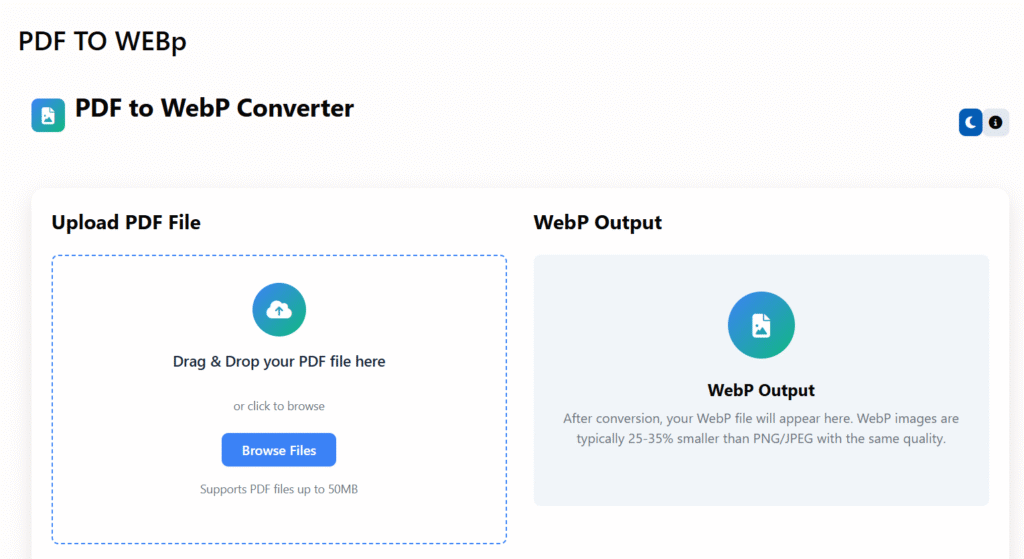
Methods to Convert PDF to WebP
There are several ways to convert PDFs to WebP. Choose the method that fits your needs and technical comfort level.
1. Online PDF to WebP Converters (Beginner-Friendly)
Online tools are convenient for small files or occasional conversions.
Steps:
- Upload your PDF to the converter.
- Select WebP as the output format.
- Adjust image quality if needed.
- Convert and download the WebP file.
Pros:
- No software installation required.
- Quick and simple for one-time use.
Cons:
- Some tools have file size limits.
- Privacy concerns if your file contains sensitive information.
💡 Best for small PDFs and occasional use.
2. Command Line Tools (Ideal for Developers)
For advanced users or batch processing, command-line tools like ImageMagick provide full control over conversion settings.
Basic command:
magick input.pdf output.webp
With quality control:
magick input.pdf -quality 80 output.webp
Benefits:
- Complete control over quality and compression.
- Suitable for large-scale projects or automated workflows.
3. Desktop Software (Photoshop, GIMP, or Affinity Photo)
Designers often prefer desktop software for visual control.
Steps:
- Open the PDF in the software.
- Select the page or pages to convert.
- Set resolution (150–300 DPI recommended).
- Export as WebP and adjust quality settings.
Advantages:
- Precise control over resolution and image quality.
- Ideal for high-quality visuals for websites.
Recommended WebP Settings for Web Performance
To ensure optimal balance between quality and performance:
- Quality: 70–85 (lossy compression)
- Resolution: 150 DPI for web; higher DPI only if needed
- Compression Type: Lossy for photos, lossless for text/graphics
- Dimensions: Resize images before exporting to avoid oversized files
💡 Tip: Oversized images are a common reason for slow-loading pages. Always optimize dimensions and compression.
PDF to WebP for SEO and Core Web Vitals
Google’s ranking algorithms consider performance metrics known as Core Web Vitals:
- LCP (Largest Contentful Paint): Time taken to load main content.
- CLS (Cumulative Layout Shift): Stability of content layout while loading.
- INP (Interaction to Next Paint): Responsiveness of interactive elements.
Converting PDFs to WebP reduces file sizes, improves load times, and minimizes layout shifts, positively impacting these metrics.
HTML Setup for WebP Images
For maximum compatibility across browsers, use the <picture> element:
<picture>
  <source srcset="image.webp" type="image/webp">
  <img src="image.jpg" alt="Description of image">
</picture>
This ensures fallback support for browsers that do not yet fully support WebP.
PDF vs WebP Comparison
| Format | File Size | Speed | Best Use |
|---|---|---|---|
| WebP | ⭐⭐⭐⭐ | ⭐⭐⭐⭐ | Web images |
| JPG | ⭐⭐⭐ | ⭐⭐⭐ | Photos |
| PNG | ⭐⭐ | ⭐⭐ | Transparency |
| ⭐ | ⭐ | Documents, download |
Common Issues and How to Fix Them
Blurry text after conversion:
✔ Increase DPI or resolution before exporting.
File still too large:
✔ Reduce dimensions and adjust quality settings.
Browser not displaying WebP:
✔ Implement <picture> fallback or ensure server supports image/webp MIME type.
SEO & Best Practices Summary
- Convert PDFs only when visual display is needed.
- Compress images for faster loading.
- Use descriptive alt text for accessibility and SEO.
- Implement lazy loading for below-the-fold images.
- Avoid embedding full PDFs unnecessarily.
Following these steps improves both user experience and search engine performance.
FAQs
Is WebP better than PDF for websites?
Yes. WebP loads faster, improves page speed, and enhances Core Web Vitals.
Can I convert multi-page PDFs to WebP?
Yes. Each page can be converted into a separate WebP image.
Does Google support WebP?
Yes. Google fully supports WebP and encourages its use for faster-loading sites.
Is WebP good for SEO?
Yes. Faster images directly contribute to improved Core Web Vitals, which influence rankings.
Can WebP replace PDFs completely?
No. PDFs remain better for downloadable documents, forms, and print-ready content.
Final Thoughts
Converting PDFs to WebP is a simple, effective way to improve website speed, SEO, and user experience. Whether you are a blogger, developer, or business owner, using optimized image formats provides a measurable performance advantage.
By following the right methods, adjusting quality settings, and implementing SEO-friendly practices, you can ensure your content looks great without slowing down your website.
✅ Start optimizing your PDFs today and enjoy faster-loading pages and happier users.
Additional Tools You Might Find Useful:
About Regalia360
Regalia360 provides free, privacy-focused online tools for productivity, file conversion, and data handling. Designed for simplicity, performance, and ease of use.